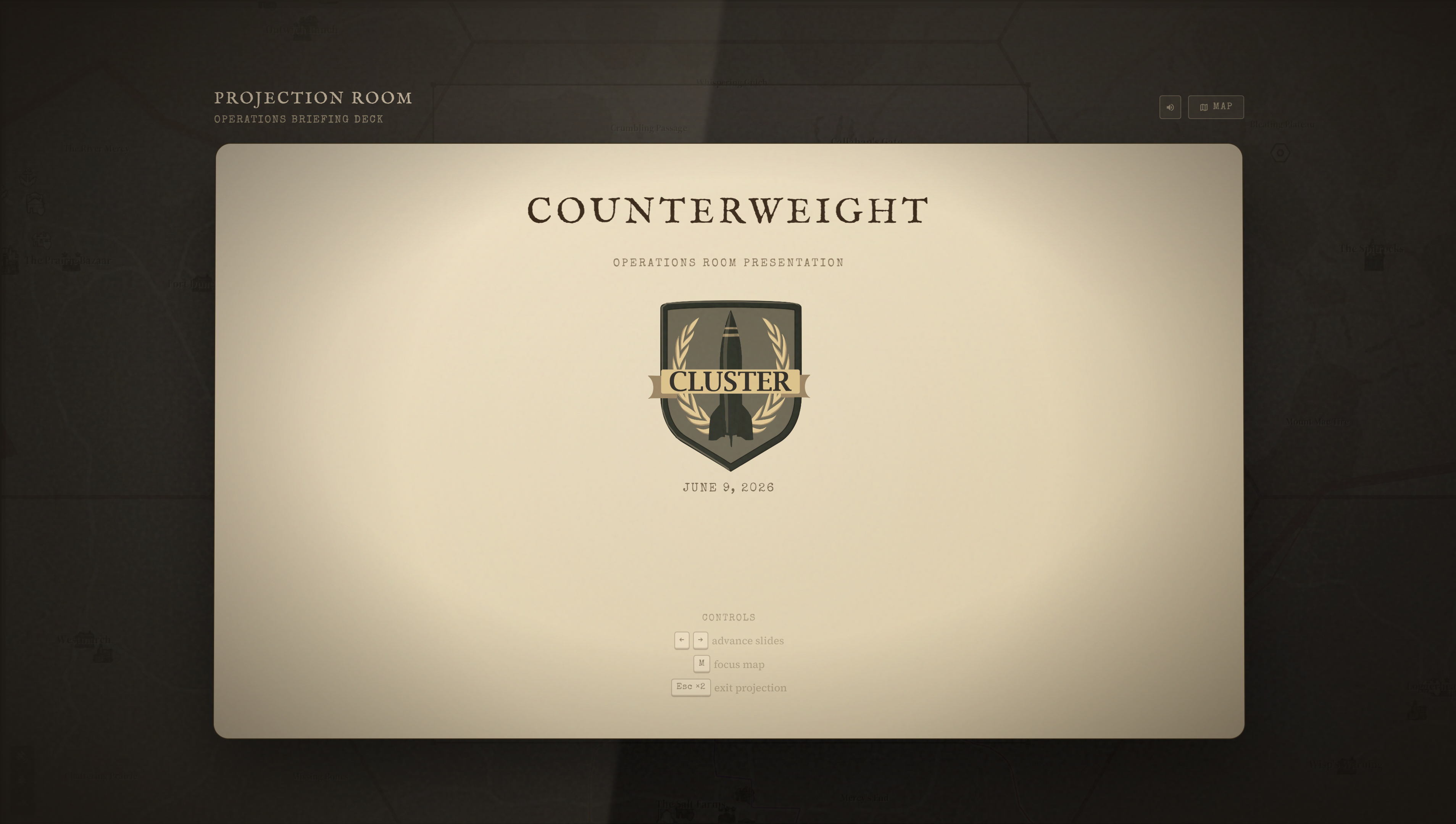
Presentation Mode turns your operation into a full-screen slide deck for briefing your regiment before an operation. Slides are generated automatically from the Document Panel — no extra setup is needed beyond filling in the briefing text and roster.
Open Presentation Mode: press P in the map editor, or click the presentation button in the toolbar. The browser goes full-screen and the first slide appears.
Slides
Slides are generated in the following order:
Title Slide
Shows the operation name, the scheduled date and time, and your regiment's insignia. This is the opening slide shown while members join.
Organisation Chart
An interactive view of the full unit hierarchy from the Roster tab. Click any unit to drill into it and see:
- The number of filled slots vs. total slots
- The names assigned to each slot
- Supply items allocated to that unit from the Supplies tab
Use this slide to walk through who is doing what before the operation begins.
Briefing Slides
One slide per section of the Briefing tab (Situation, Mission, Execution, Logistics, Command & Signal). The text from each section fills the main body of the slide. Supporting information — such as task summaries or unit callouts — appears in a side panel.
Map Slide
Shows the current map drawings against the Foxhole hex backdrop, fitted to the Area of Operations. Use this slide to walk through the plan on the map before questions.
Navigation
| Action | How |
|---|---|
| Next slide | Right arrow, Space, or Page Down |
| Previous slide | Left arrow or Page Up |
| On-screen buttons | Click the left/right arrows at the edges of the screen |
Hotkeys while in Presentation Mode:
- M: Pull the Map Slide into focus from any other slide
- Esc (press twice): Exit Presentation Mode. The first press prompts confirmation; the second exits.
Audio
A projector click sound plays on each slide transition. Click the mute toggle in the corner to disable it if you are screen-sharing and do not want the audio to bleed through.