The Document Panel contains the written portion of your operation: the briefing text, task list, roster, and supply requirements. It is the source material for the Discord full order and for Presentation Mode.
Open the panel: press D or click the document icon in the sidebar. The panel slides open on the right side of the map. You can draw on the map while the panel is open.
All changes to the document sync live to every user connected to the operation.
Briefing Tab
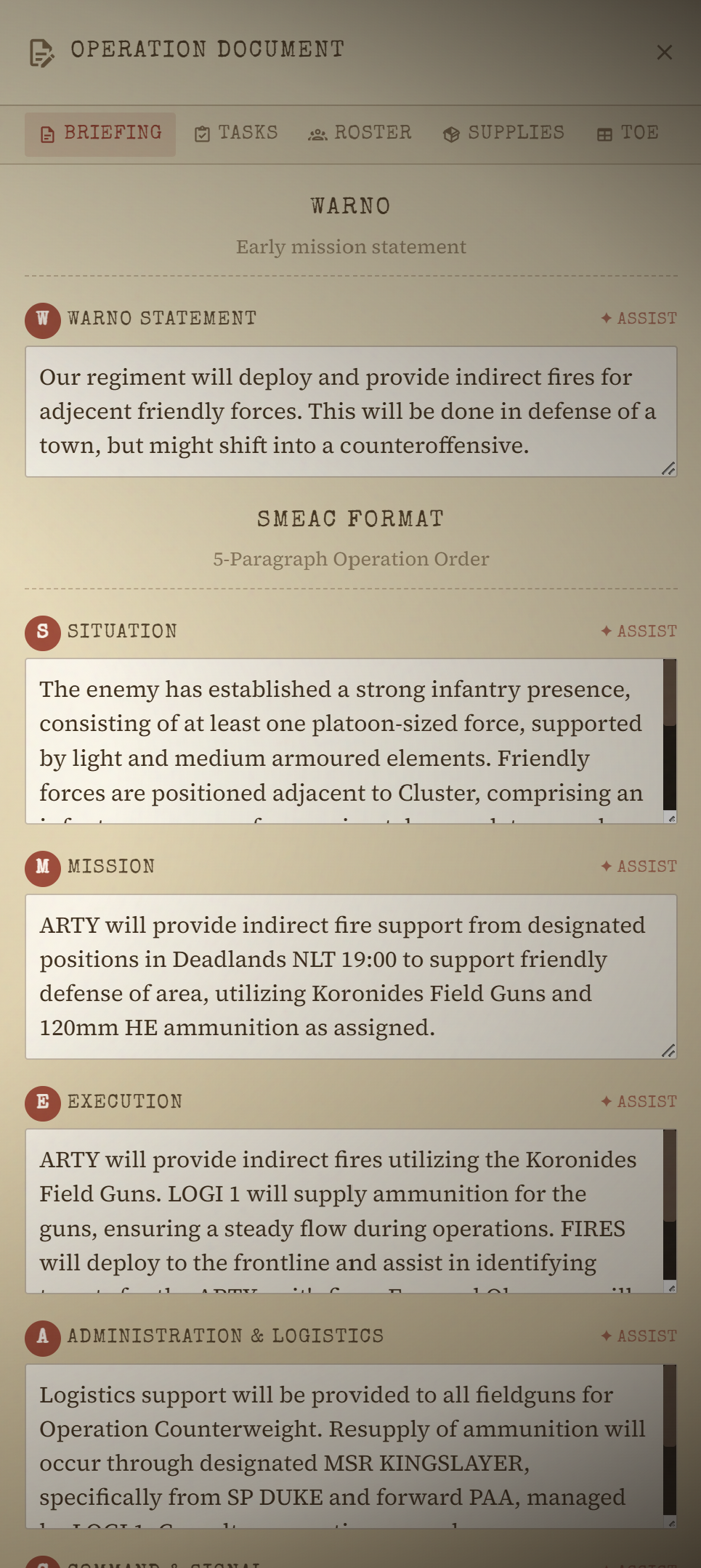
The briefing is divided into six sections that follow the standard operations order format (SMEAC):
| Section | What to write |
|---|---|
| Warno Statement | A brief advance notice — who should plan, what kind of operation, approximate timing |
| Situation | Enemy forces, friendly forces, terrain, weather, and anything else affecting the operation |
| Mission | The task and purpose, clearly: Who, What, When, Where, and Why |
| Execution | Concept of operations, phases, sub-unit tasks, coordinating instructions |
| Administration & Logistics | Supply, transportation, maintenance, medical support, and other admin matters |
| Command & Signal | Command post locations, chain of command, signal instructions, comms procedures |
Each section is a freeform text field with its own AI Assist button — it asks you a few clarifying questions about the operation, then drafts the section for you to edit. The text populates the briefing slides in Presentation Mode and is included in the Discord Full Order.
Tasks Tab
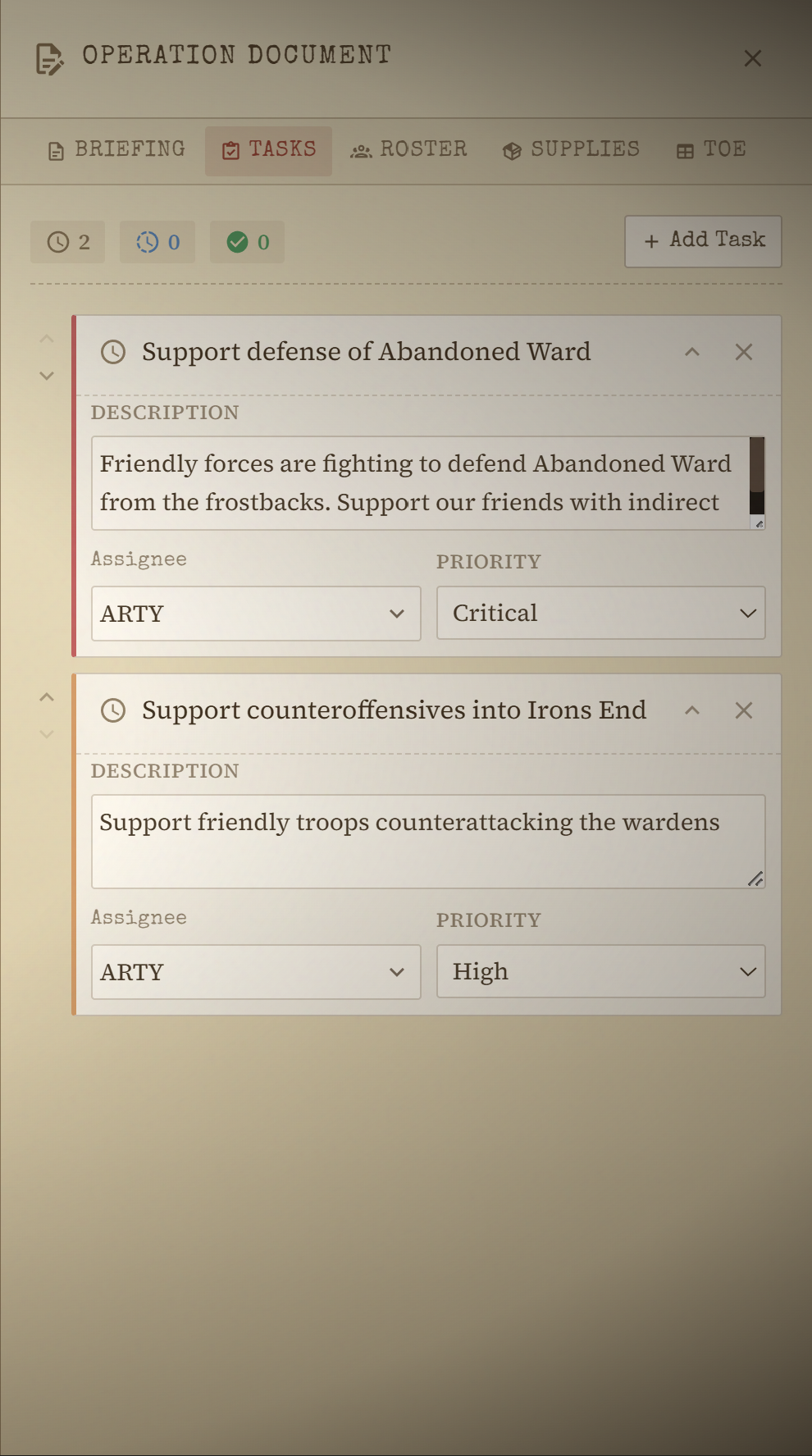
The Tasks tab is a simple checklist for tracking discrete work items within the operation. Each task has:
- Title: Short description of the task
- Description: Optional detail or instructions
- Assignee: Pick a member from the operation roster, or leave it Unassigned
- Status: Pending, In Progress, Complete, or Cancelled
- Priority: No Priority (default), Low, Normal, High, or Critical
Tasks are visible to all connected users and update in real time. They appear as a summary in the Discord Full Order.
Roster Tab
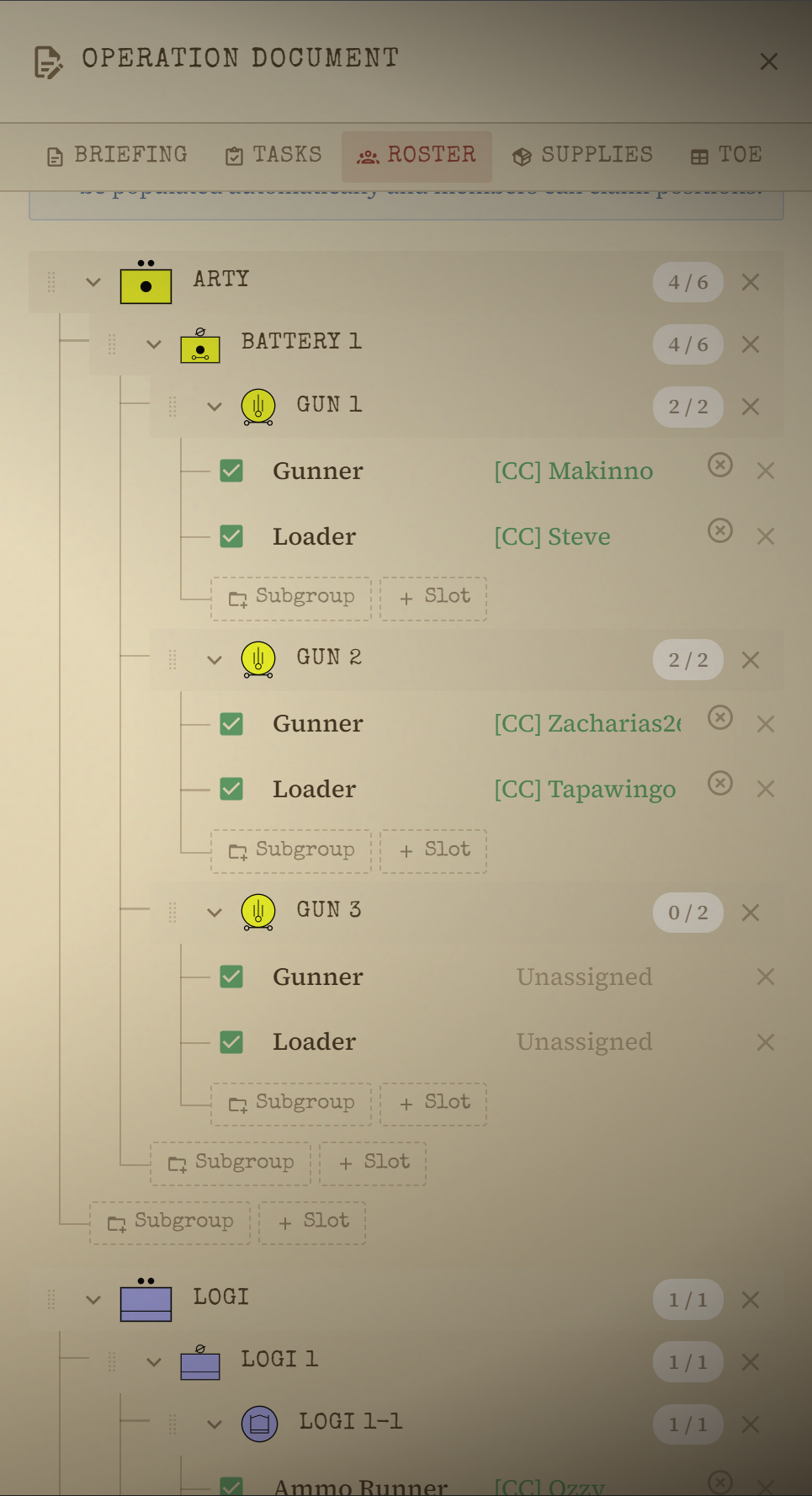
The Roster tab shows the unit hierarchy for the operation: all groups, their sub-groups, and the named slots within each. Each slot has a role label and can be assigned to a member, and each group can carry its own unit marker (the same MIL-STD 2525 symbols used on the map).
Slot assignments are linked to the signup system: when a member signs up for the operation (via the Discord Warning Order embed), their name appears in the roster next to their slot.
Roster Templates
Rather than rebuilding the group hierarchy from scratch for every operation, click Templates to save and reuse one. It opens to a list of your regiment's saved templates — shared across all operations, not tied to this one:
- Saving the current roster: click Save current as template at the bottom of the list, give it a name, and save. Whoever's currently assigned gets saved into the template too.
- Loading one: click Load next to any template. This replaces the current roster structure — but slots always load empty, even for a template saved with people in them, so you don't accidentally drag one operation's assignments into another.
- Deleting one: click the trash icon next to a template in the list.
Supplies Tab
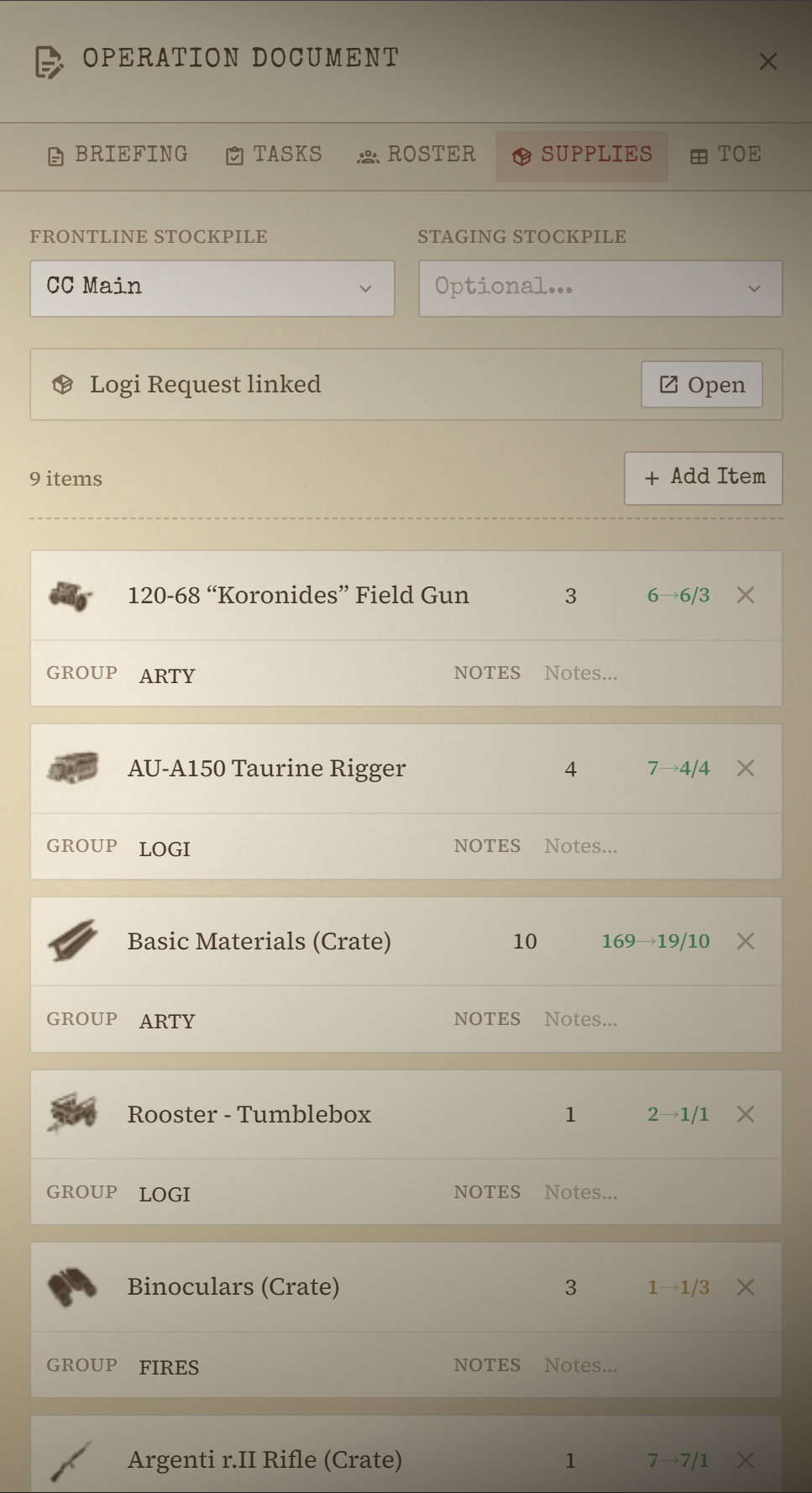
The Supplies tab tracks the logistics requirements for the operation and links them to your S&S stockpiles so you can see availability at a glance.
Stockpiles
At the top of the tab you link two stockpiles from your S&S Room:
- Frontline Stockpile: the depot closest to the area of operations. Once linked, each supply item shows how much is already at that stockpile versus how much is needed.
- Staging Stockpile: an optional second depot used to pre-position supplies before pushing them forward.
You can also create a new stockpile directly from the picker if one does not yet exist.
If a Logi Request has been linked to this operation, a banner appears with a link to open it in the Logistics room.
Supply Items
Add one row per item your operation requires. Each row has:
- Item name: autocomplete against the Foxhole wiki item list, with item icons shown inline
- Quantity: how many are needed
- Availability indicator: shows total quantity across all your stockpiles versus the quantity needed. If a frontline stockpile is linked, it also shows how much is already at that specific stockpile.
- Group: optionally assign the item to a roster group (e.g. "Alpha Platoon") so the ToE tab can show supply distribution per unit
- Notes: any free-text notes about sourcing, delivery status, or priority
ToE Tab
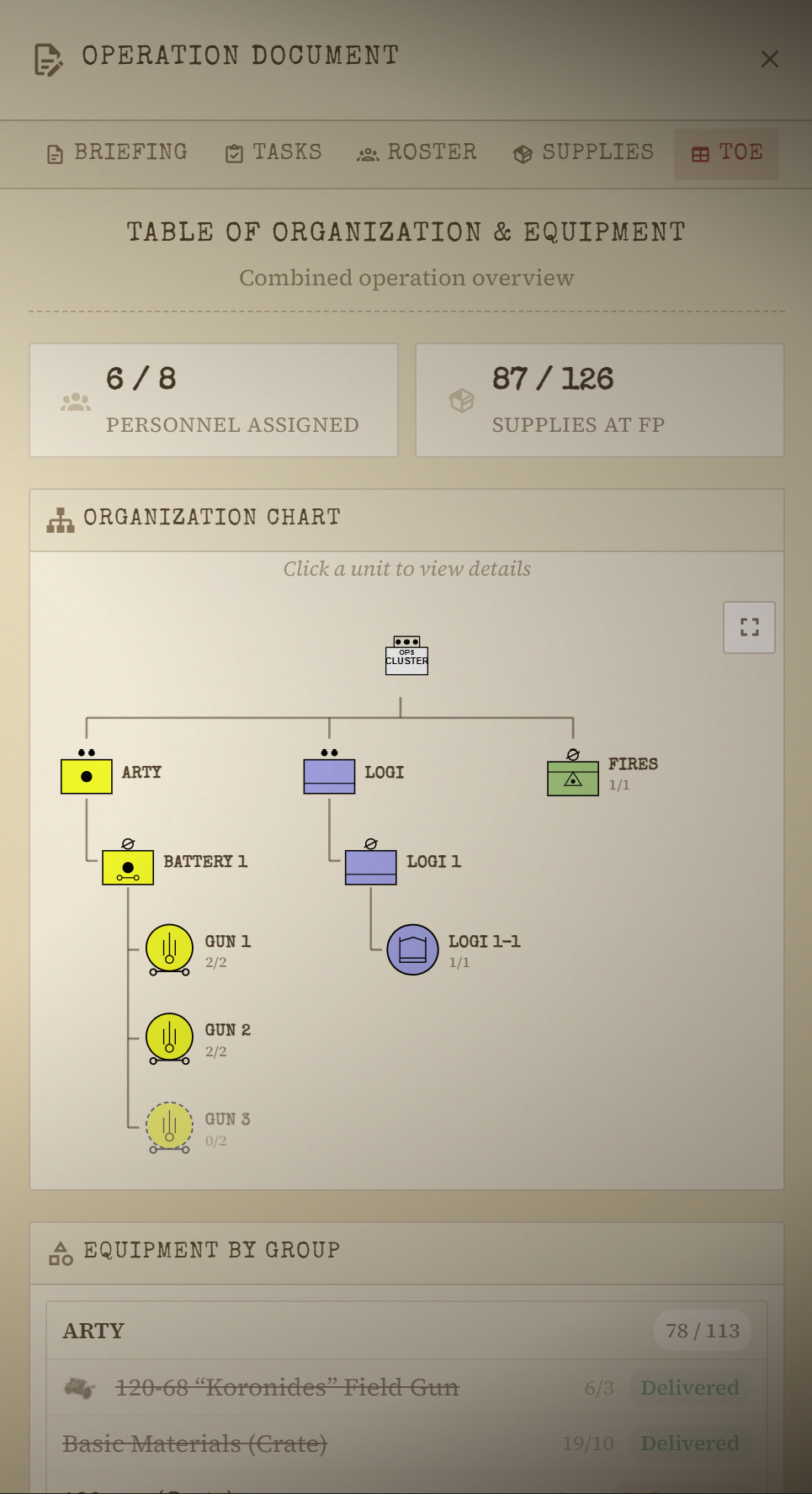
The ToE (Table of Organisation & Equipment) is a read-only combined view of the Roster and Supplies tabs. It shows:
- Each unit and sub-unit in the hierarchy
- The strength of each unit (number of filled slots vs. total slots)
- The supply items assigned to each group
The ToE is primarily used in Presentation Mode, where it appears as the Organisation Chart slide with drill-down capability.