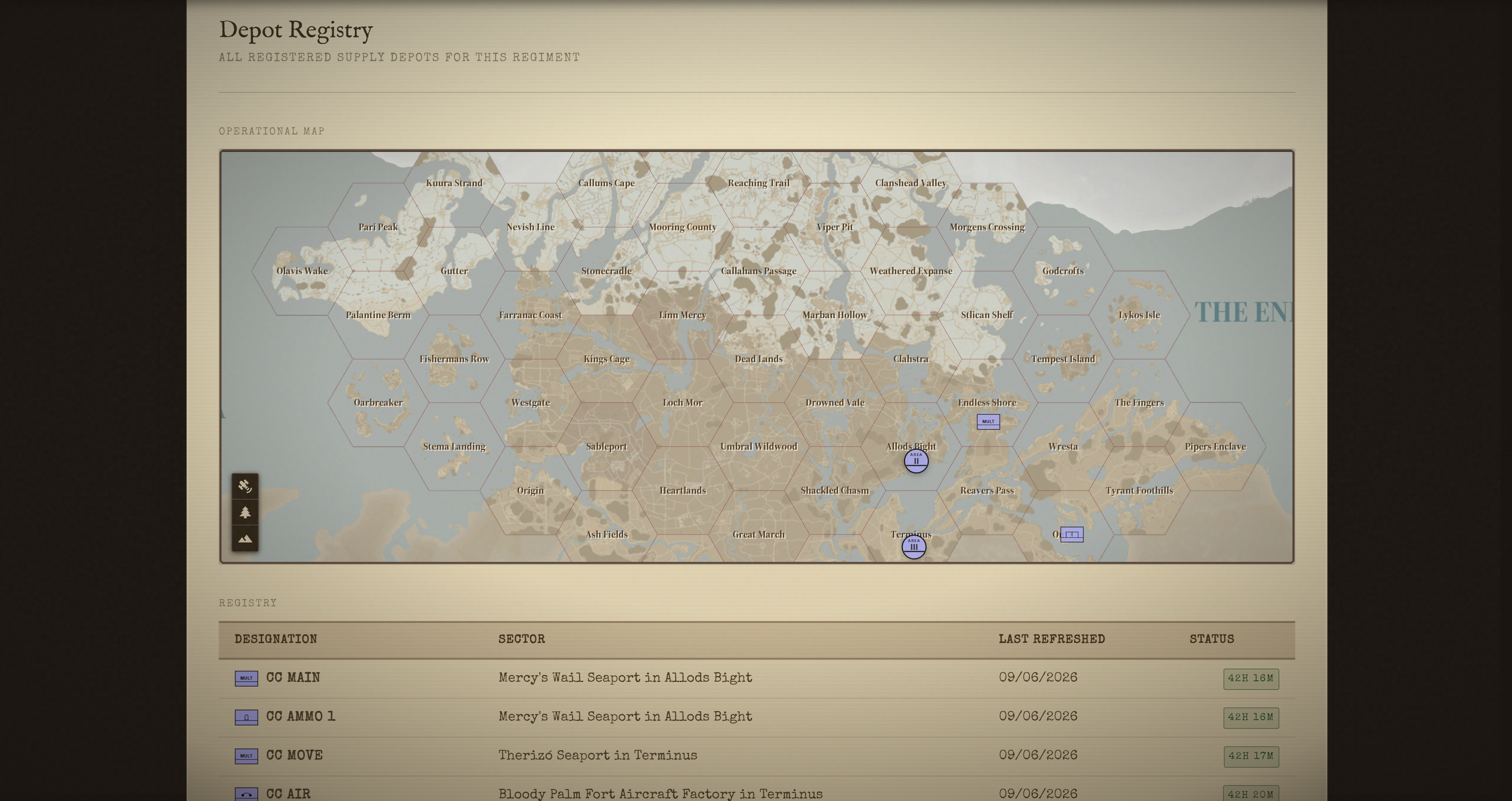
The Stockpiles is found under Logistics → Stockpiles. It is the central view for all active stockpiles your regiment is tracking: their location, current inventory, access codes, and freshness status.
Reading the Registry
At the top of the page is a map showing all depots as coloured markers. The colour of each marker reflects how fresh its inventory is:
| Colour | Status | Meaning |
|---|---|---|
| 🟢 Green | Fresh | Inventory was confirmed recently. More than 8 hours remain before the stockpile is release to public. |
| 🟡 Yellow | Warning | Fewer than 8 hours remain. A member should check the depot soon. |
| 🔴 Red | Expired | The refresh window has elapsed. Items have been released to public. |
| ⬜ Grey | Unknown | This depot has never been refreshed. |
Below the map is the Registry Table, a sortable list of all active depots with their designation, hex location, last refresh time, and current status. Click any row to open the full depot detail view.
Creating a Depot
Requires
S8 (Depots)
Click New Depot at the top of the Registry page. Fill in the following fields:
Designation: The name your regiment will use to identify this depot (e.g., "Bravo Stockpile" or "Fwd Ammo Dump"). Choose something clear and consistent with your regiment's naming conventions.
Location: Click the map to place the depot marker on the correct hex. Add a short text description if useful (e.g., "Inside the facility bunker, north entrance").
Access Code: The in-game password for the stockpile, if one is set. Only members with the S4 or S8 role can see it. Leave blank if the depot has no code.
Refresh Duration: How long (in hours) the inventory is considered valid before the depot is marked stale. The default is 40 hours, which works well for most active depots. Lower this for high-throughput depots you want to monitor more closely.
Once created, the bot posts an embed to your stockpile channel and opens a Discord thread for tracking that depot's activity.
Managing a Depot
Click any depot in the registry to open its detail page. This is the main working view for logistics staff.
Marking a Depot Refreshed
Requires
S4 (Logistics) or
Click Mark Refreshed to confirm that a member has physically checked the depot in-game. This resets the expiry timer and changes the status back to Fresh. It does not update the item quantities; update those separately in the Inventory table.
You can also do this from Discord using /stockpile refresh [name], which is useful when a member is in-game and wants to confirm a depot quickly.
Updating Inventory
Requires
TrenchQuarters Web
The Inventory section shows a table of all items currently tracked in this depot. Each item has its current quantity. To update:
- Click the quantity field next to an item.
- Type the new number.
- The change saves automatically.
To add an item that isn't listed yet, use the Add Item field at the bottom of the table, type the item name (autocomplete will suggest from the war wiki), and enter a starting quantity.
Every quantity change is recorded automatically. If a quantity increases, the system logs it as an intake. If it decreases, it logs it as a consumption. These records feed the Production stats page and the audit log.
Discord
Underneath each stockpile embed is an attached thread. To update the inventory paste a csv exported from the game in here, this will automatically sync the TrenchQuarters stockpile inventory with the in-game stockpile inventory.
To export the in-game stockpile inventory do the following:
- open you map and navigate to the stockpile.
- Pin the stockpile with CTRL + A.
- Select the stockpile you want to export sing the select menu in the pinned modal.
- Click the "Export as CSV" button in the toolbar.
- Paste the csv into the discord thread for the stockpile and send it.
Viewing the Access Code
Requires
The access code is hidden by default. Click the Reveal button next to the code field to show it, or Copy to copy it to your clipboard without displaying it on screen.
Editing Depot Details
Requires
From the depot detail page you can:
- Rename the depot by clicking the designation at the top of the page.
- Change the location by clicking Edit Location and repositioning the map marker.
- Set the Supply Class to categorise what type of materiel this depot holds:
| Class | Category |
|---|---|
| I | Rations and subsistence |
| II | Clothing and equipment |
| III | Fuel and lubricants |
| IV | Construction materials |
| V | Ammunition |
| VI | Personal demand items |
| VII | Major end items |
| VIII | Medical material |
Archiving a Depot
Requires
When a depot is no longer in use, use Archive to remove it from the active registry. Archived depots do not appear on the map or in the registry table, and the bot stops posting updates for them. All historical inventory records and audit events for that depot are retained and remain visible in the Audit log.
Archiving is permanent. There is currently no unarchive option.
Discord Commands
| Command | Who can use it | What it does |
|---|---|---|
/stockpile list |
All members | Shows all active depots with their current expiry status |
/stockpile view [name] |
All members | Shows the inventory and status of a single depot |
/stockpile refresh [name] |
S4+ |
Marks the depot as refreshed and announces the new expiry time |
/stockpile create |
S8 |
Opens a form to register a new depot |
/stockpile archive [name] |
S8 |
Archives a depot |
All Discord responses are sent as ephemeral messages (visible only to the user who ran the command).