The map editor opens when S3-Operations or Command loads an operation. It shows the Foxhole hex map with your regiment's drawings overlaid, and every change is broadcast live to everyone else currently viewing that operation.
Drawing Tools
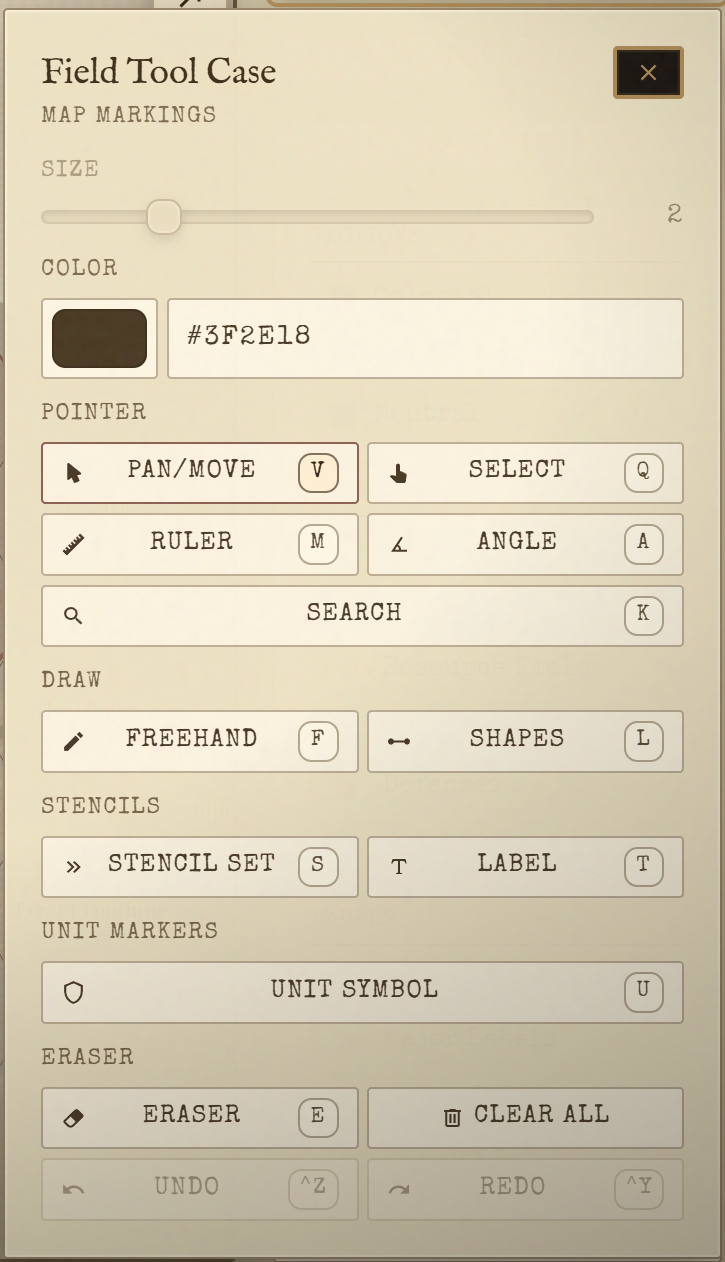
Every tool has a keyboard shortcut. Press the key to activate the tool — no need to click the toolbar.
| Tool | Key | What it does |
|---|---|---|
| Pan | V | Click and drag to move the map |
| Select | Q | Click or drag a selection box to pick and reposition drawing items |
| Ruler | M | Click two points to measure the distance between them |
| Protractor | A | Click three points to measure the angle between them |
| Freehand | F | Draw freehand strokes |
| Line | L | Draw straight lines between clicked points |
| Rectangle | R | Draw a rectangle by clicking two corner points |
| Circle | C | Draw a circle by clicking the centre then the edge |
| Label | T | Place a text annotation anywhere on the map |
| Military Symbols | U | Open the MIL-STD 2525 unit symbol picker |
| Stencils | S | Open the stencil modal for pre-built tactical overlays |
| Eraser | E | Erase by painting over items |
| Document | D | Open or close the Document Panel |
| Presentation | P | Enter Presentation Mode |
| Search | K | Search hex labels on the map |
Undo / Redo: Ctrl+Z to undo, Ctrl+Y or Ctrl+Shift+Z to redo (Cmd on Mac). Undo steps through your own drawing history; it does not undo changes made by other users.
Eraser modes: With the Eraser tool active, press X to switch between the two behaviours. In mask mode (default), paint over items to erase the parts you cross. In select mode, click individual items to remove the whole item at once.
Military Symbols
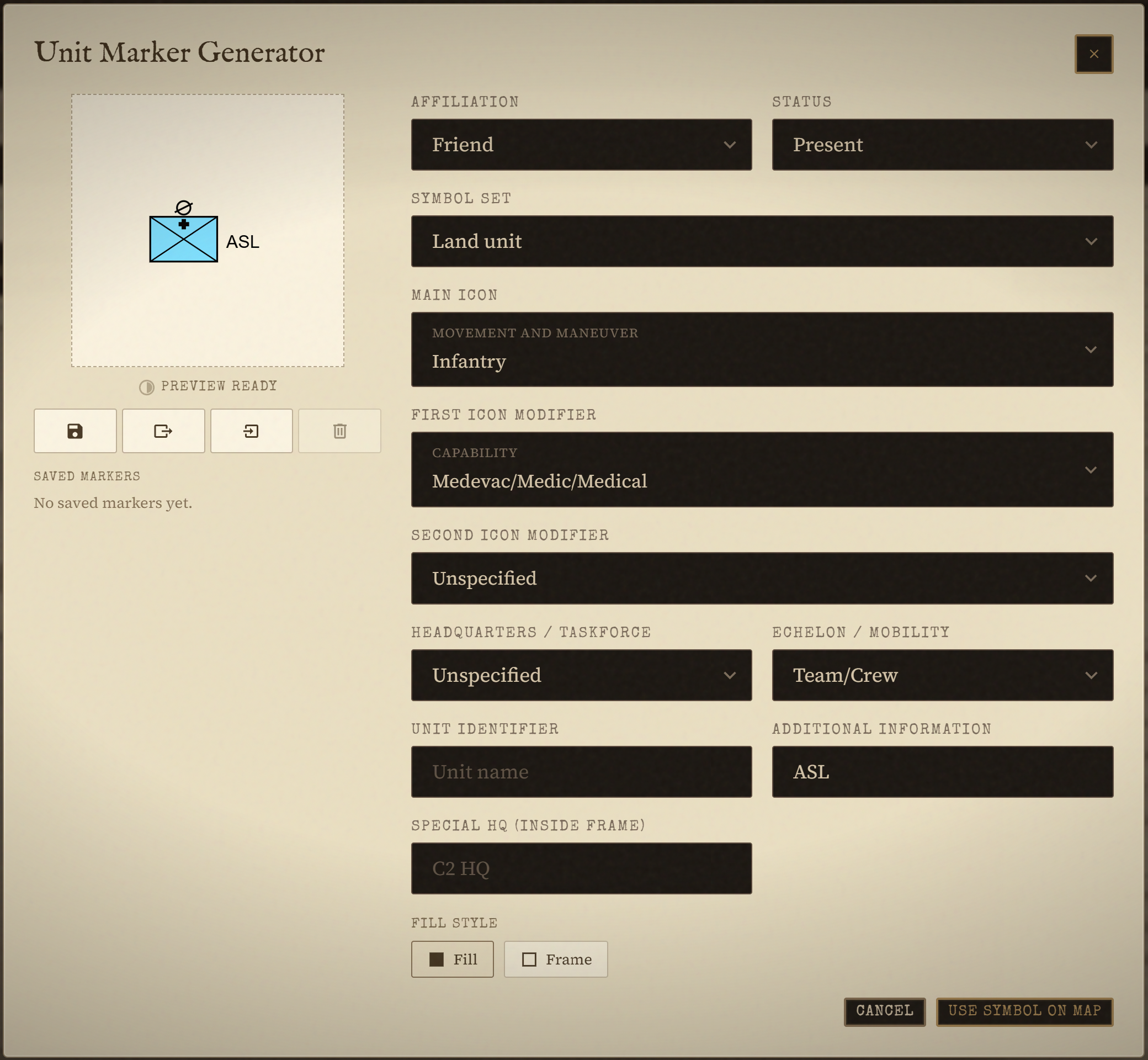
Press U to open the MIL-STD 2525 unit symbol picker. These are standard NATO tactical unit symbols — the bordered boxes with icons inside — used to mark unit positions on the map.
Configure each symbol before placing it:
- Icon: the unit type (infantry, armour, artillery, engineer, logistics, etc.)
- Echelon: the unit size indicator shown above the symbol (fire team, squad, platoon, company, battalion)
- Affiliation: friendly (blue), hostile (red), neutral (green), or unknown (yellow)
- Label: a callsign or unit designation displayed next to the symbol
Click the map to place the symbol once it is configured. Placed symbols can be moved with the Select tool.
Stencils
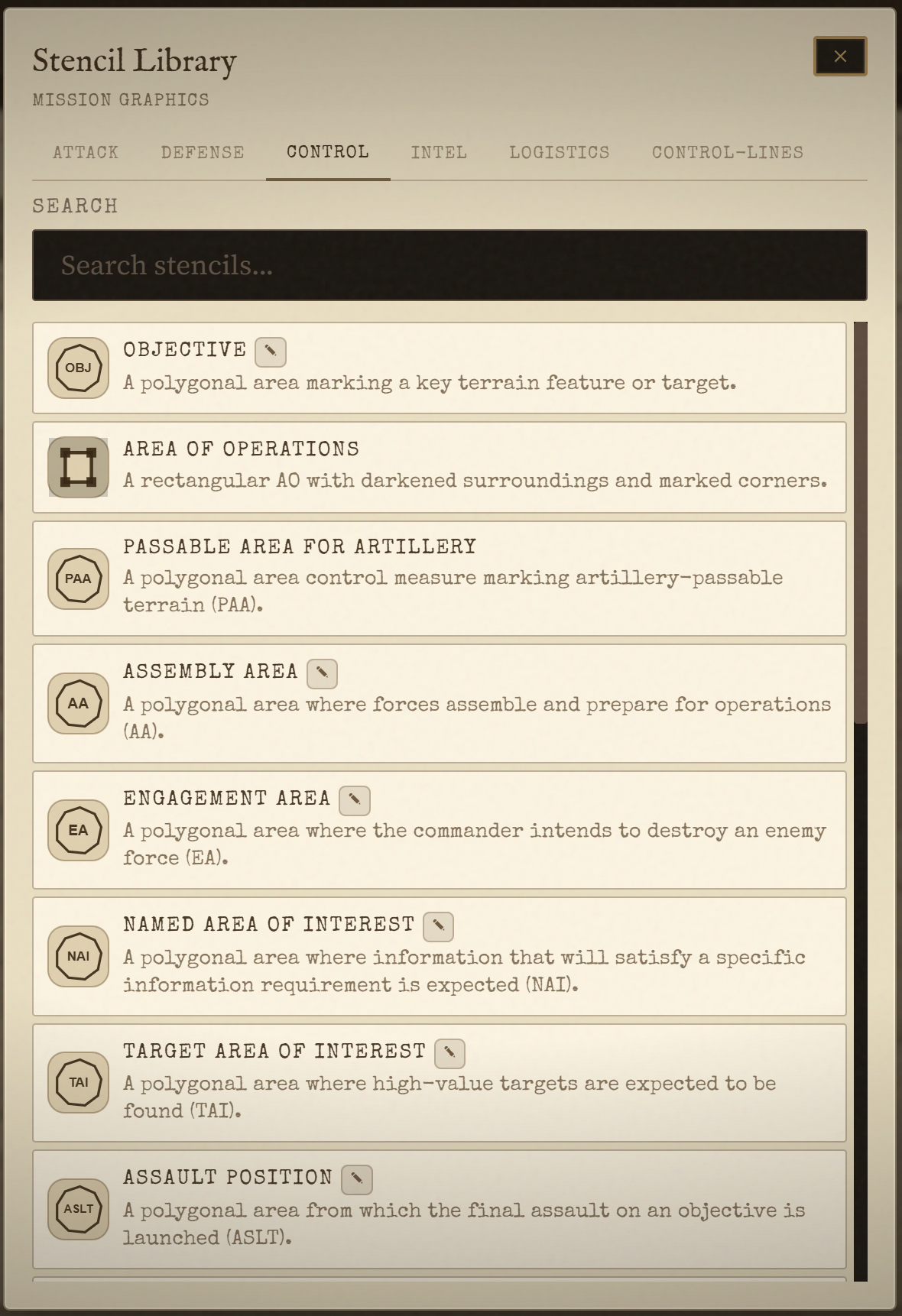
Press S to open the stencil modal. Stencils are pre-built tactical overlays, organized into six tabs: Attack, Defense, Control, Intel, Logistics, and Control Lines. You draw them by clicking points on the map — the stencil's geometry (line, polyline, polygon, or point) determines how many clicks are needed.
For a complete catalog of all available stencils with their tactical meanings, see Reference → Symbols.
The Area of Operations boundary is a stencil too, under the Control tab. Draw it as a polygon around your area of interest.
Map Legend
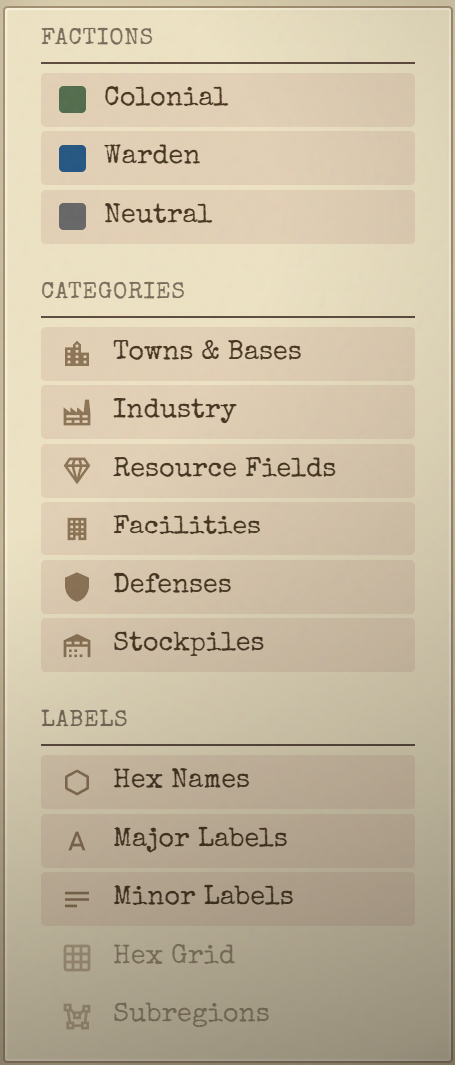
The sidebar on the right contains the Legend panel, grouped into three sections:
Factions — toggle Colonial, Warden, or Neutral markers and territory on or off.
Categories — toggle which live map-data icons show: Towns & Bases, Industry, Resource Fields, Facilities, Defenses, and Stockpiles (pulled straight from the S&S Room).
Labels — Hex Names, Major Labels, Minor Labels, Hex Grid, and Subregions (the Voronoi region shading).
Toggling a category or label off hides that layer of clutter without affecting anyone else's view — it's a per-user display setting, not a shared one.
Real-Time Collaboration
Multiple staff members can draw on the same operation at once. Each change is broadcast to everyone else viewing it as soon as you make it — there's no save button and nothing to refresh.
A status indicator in the top-left of the map shows the connection state:
- Synced (green): your changes are syncing normally
- Reconnecting… (amber): the connection dropped; the client is retrying automatically
- Offline (red): no connection right now; anything you draw while offline syncs once you reconnect
You'll also see other people's cursors moving on the map whenever they have it open, not just while they're actively drawing.